
A little less to remember.
A gentle baby tracker for feeds, sleep, nappies and the little moments in between.
Every feature is free. No ads, subscriptions, in-app purchases or paid extras.
Log breastfeeds, bottles, pumping, sleep, nappy changes and solids. Keep notes, follow timers and look back through your day.
A closer look.
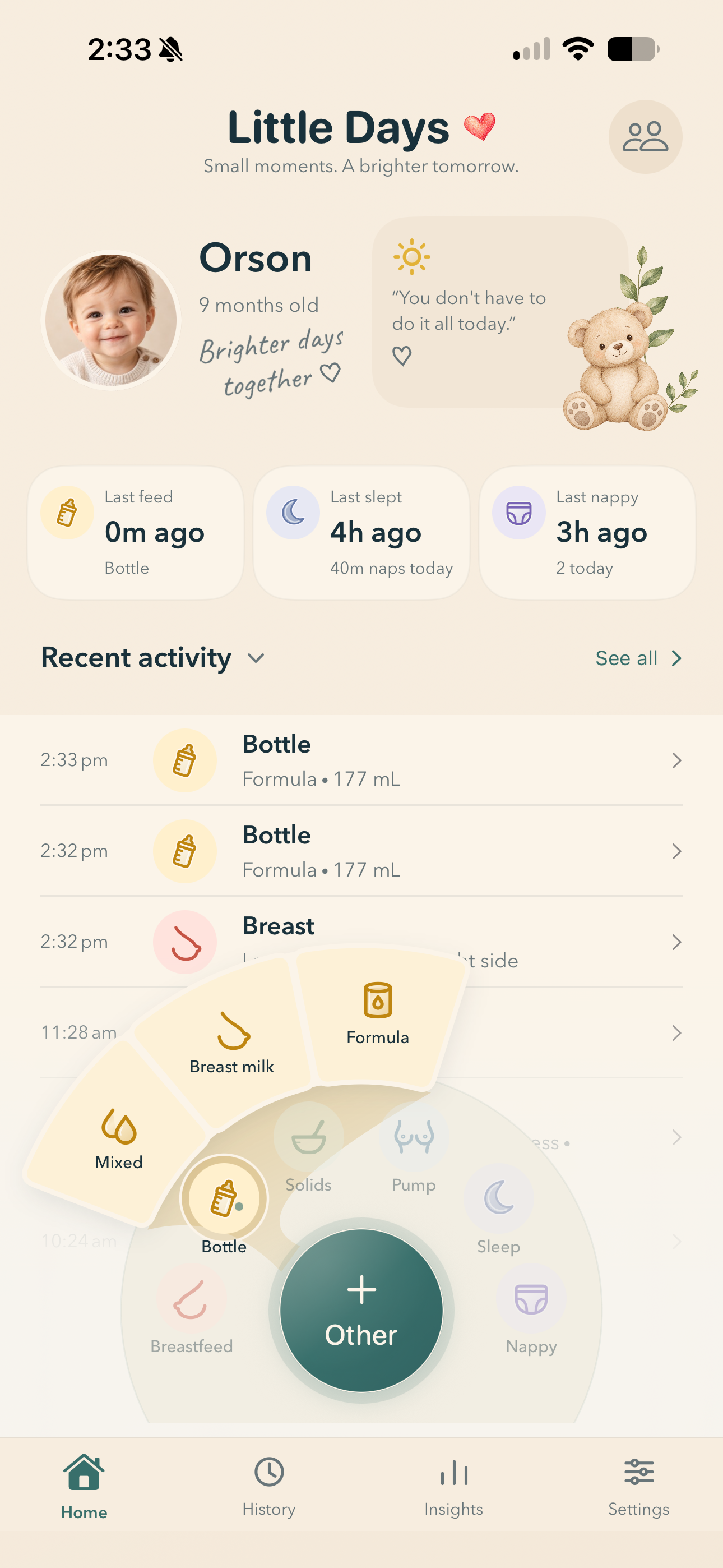
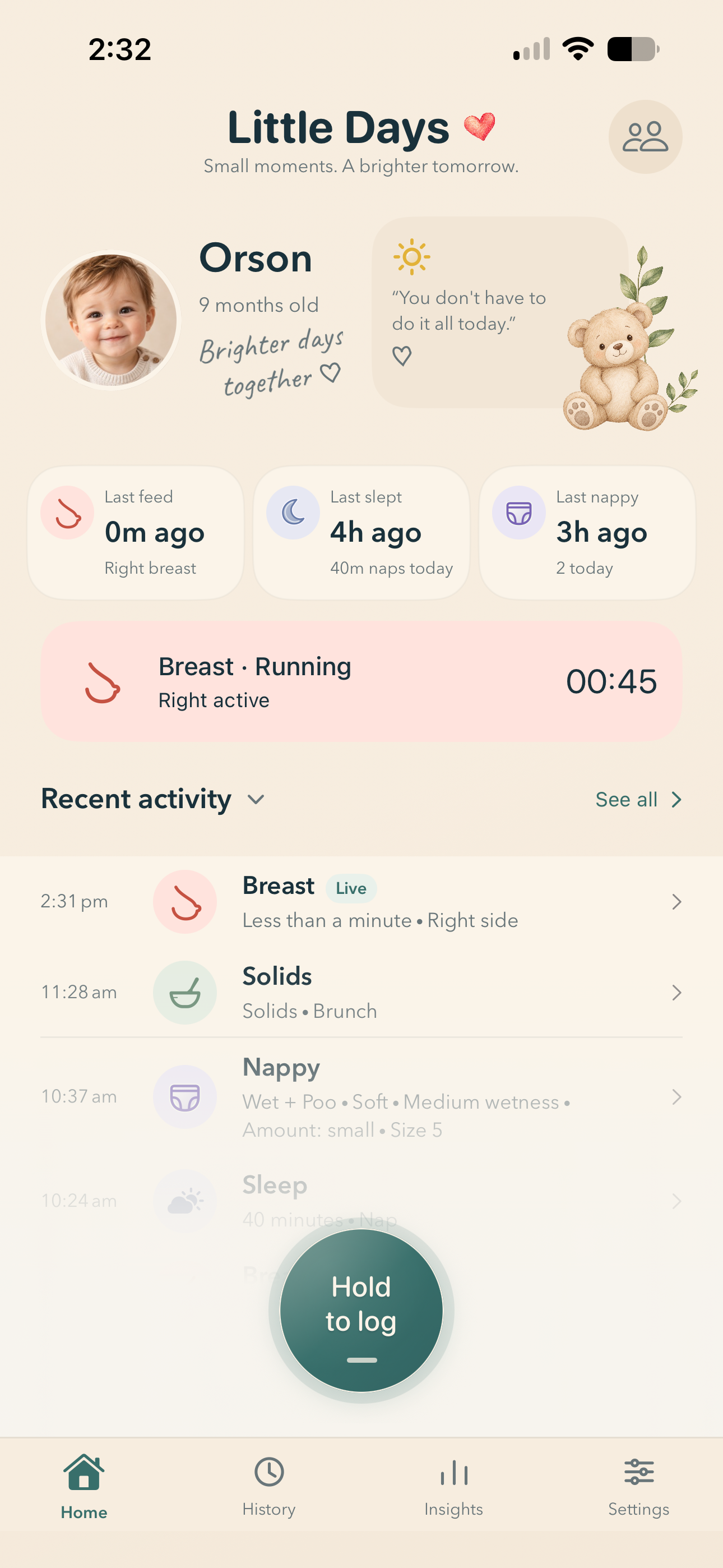
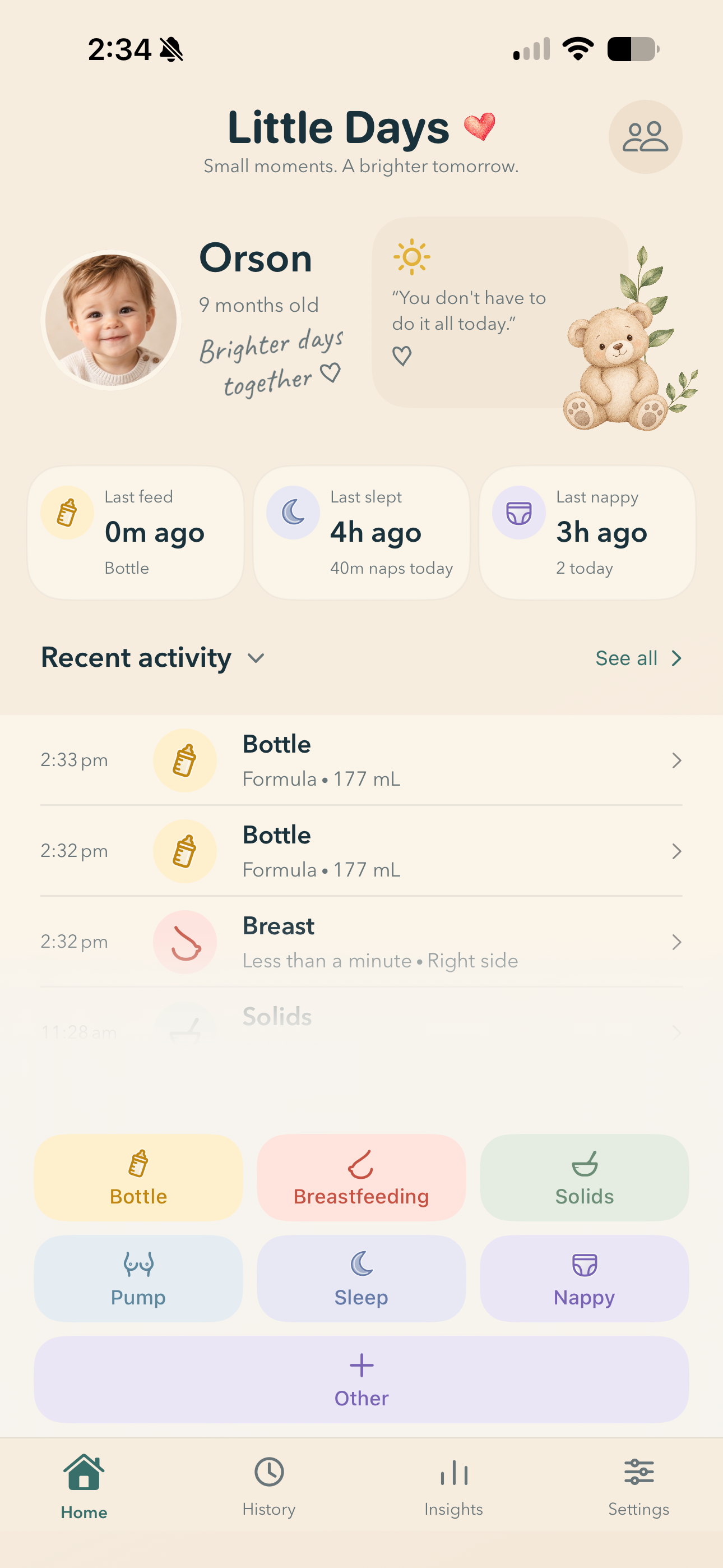
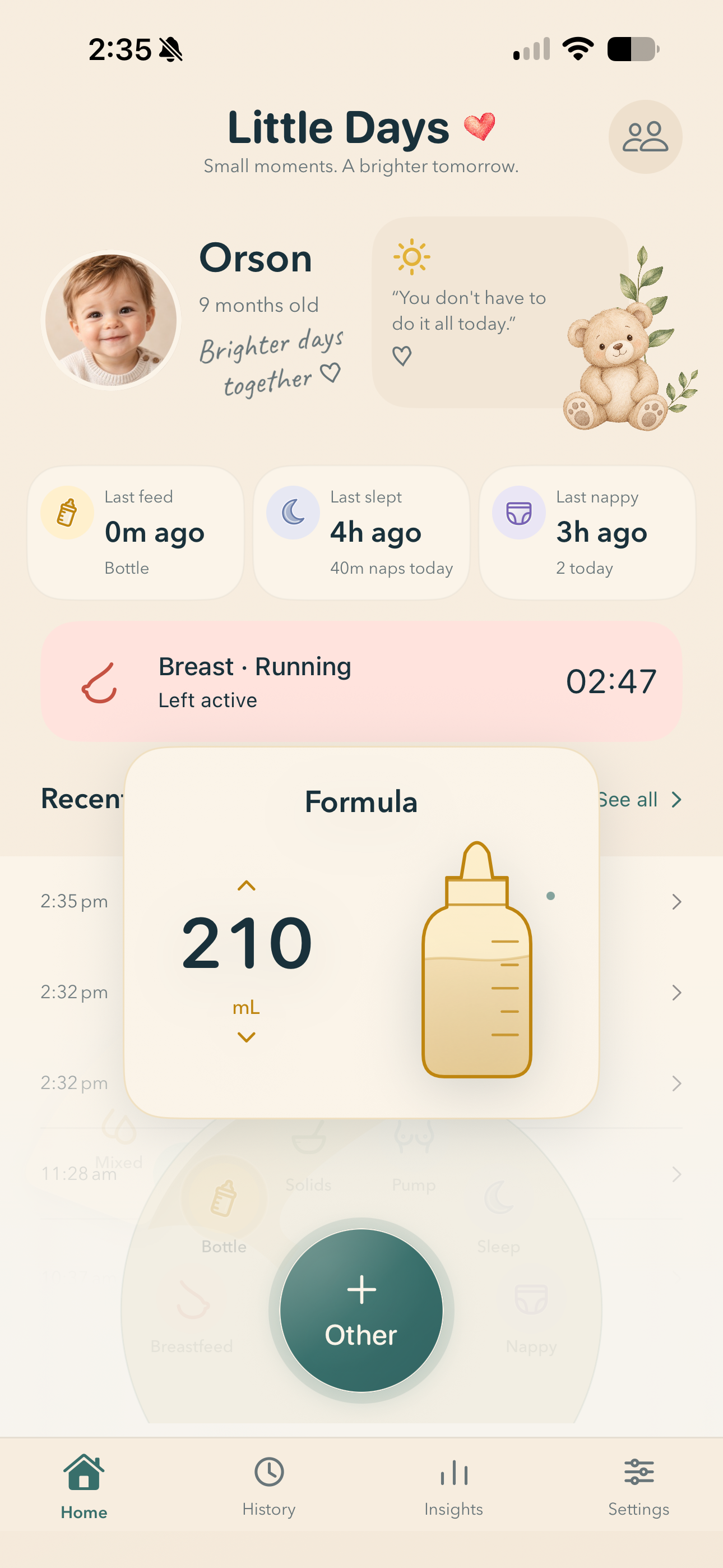
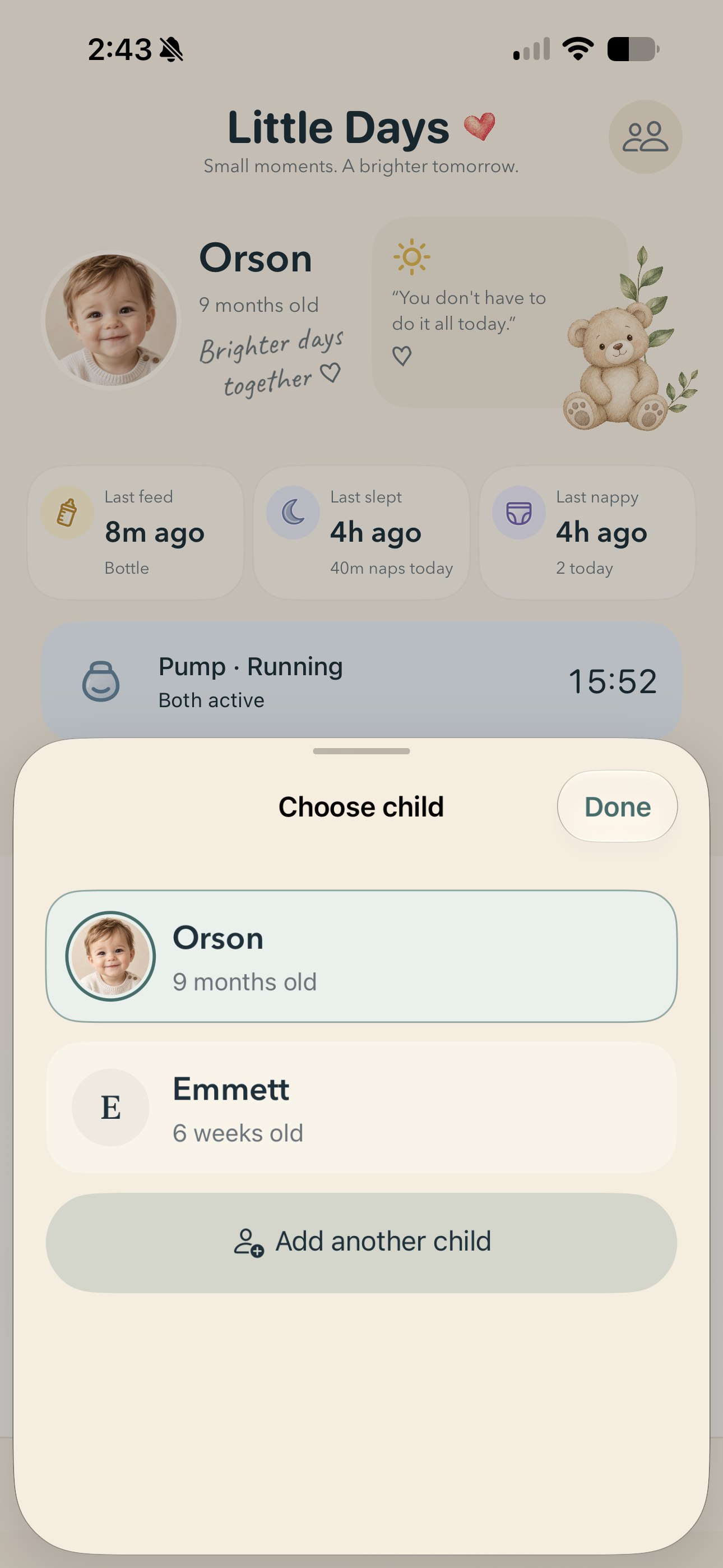
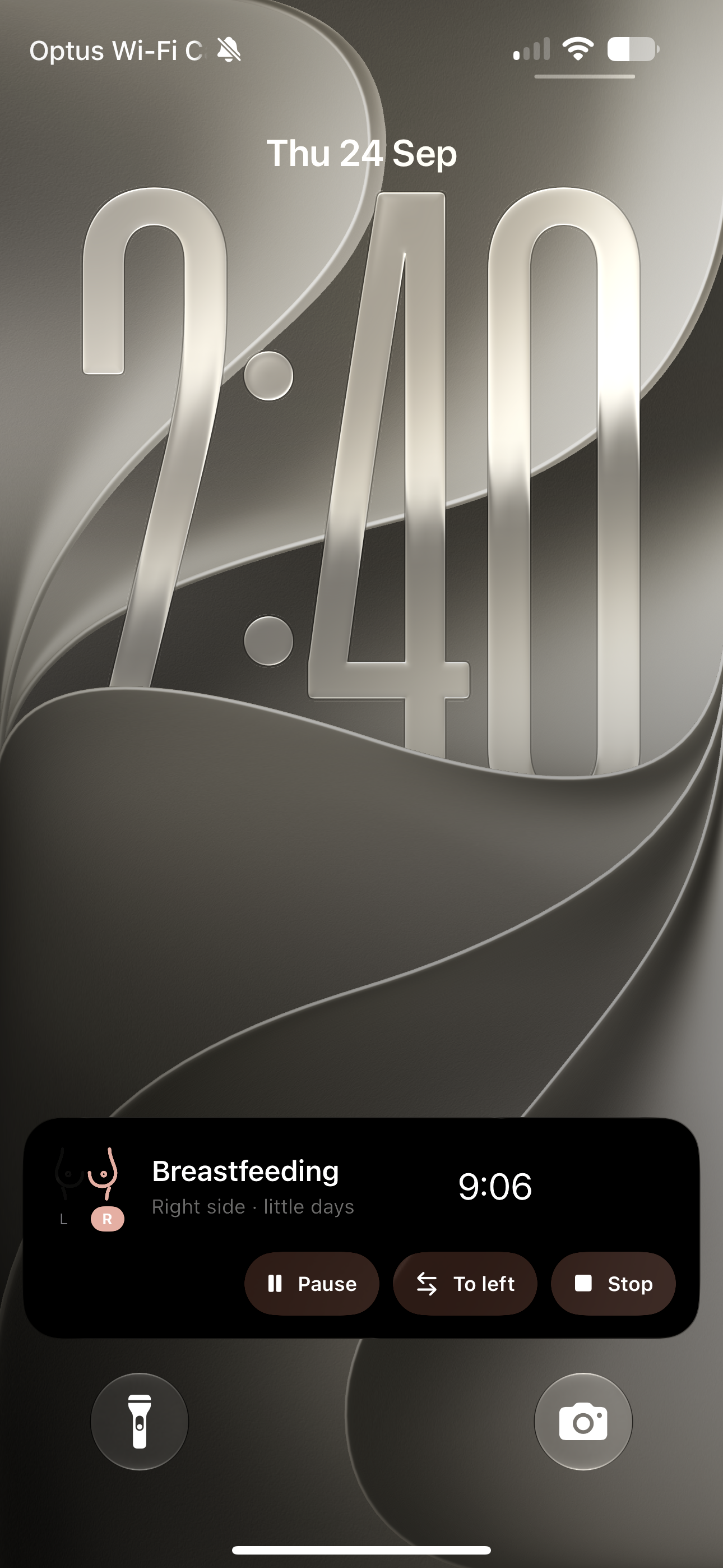
Swipe across to explore Little Days 1.3.
A little help.
These instructions match the 1.3 release. If you have an earlier version, some choices may look different.
How do I choose the wheel or buttons?
Open Settings → Logging control and choose Wheel or Buttons. With the wheel, hold Hold to log, slide to an activity and release on a final choice. Keep holding and move outward to explore its extra choices. With buttons, tap an activity and choose what to record.
Under the selected control, open Wheel layout or Button layout to choose the activities you see and their order. Button layout also includes the button size.
How do I make Home simpler?
During setup, choose Default, Basic or Minimal. Afterwards, open Settings → Declutter mode to choose which Home elements appear. Today’s layout controls the summary widgets, and Daily quote controls the quote.
Logging and Home choices are saved separately for each child on this device. Check the selected child at the top of Settings before changing them.
How do I save bottle and nappy details?
Choose a bottle type, then adjust the amount using the bottle control. To show an amount card after releasing the wheel, turn on Settings → Prompts → Ask for bottle amount on release.
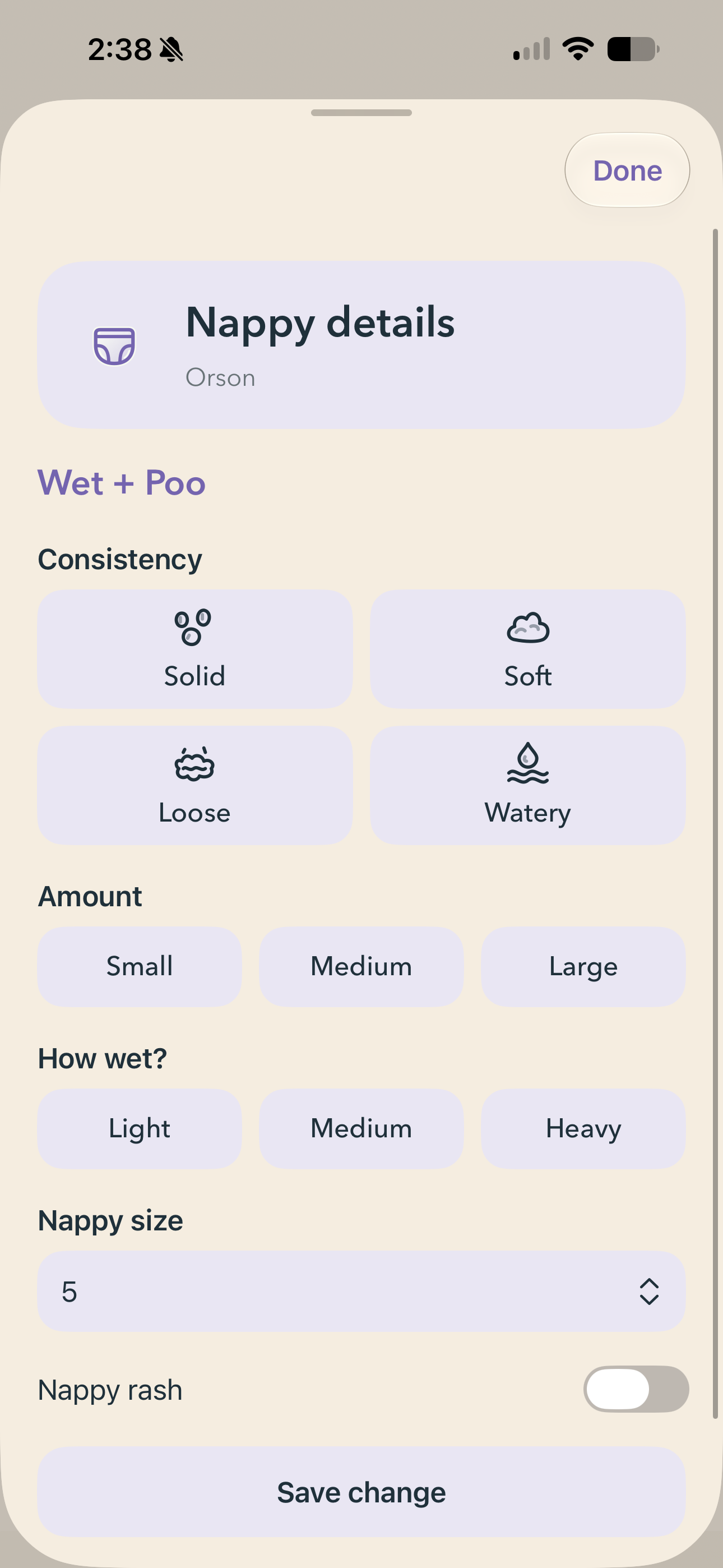
For a new nappy change, choose Wet, Poo or both. If the details card is enabled, add the details you want and tap Done or Save change. Swiping that card down also saves the change. Open Settings → Nappy details to choose which fields appear. A rash is included in the activity description only when one is recorded.
Open Settings → Units & wording to choose volume units, adjustment steps and words such as nappy or diaper.
How do I control a timer?
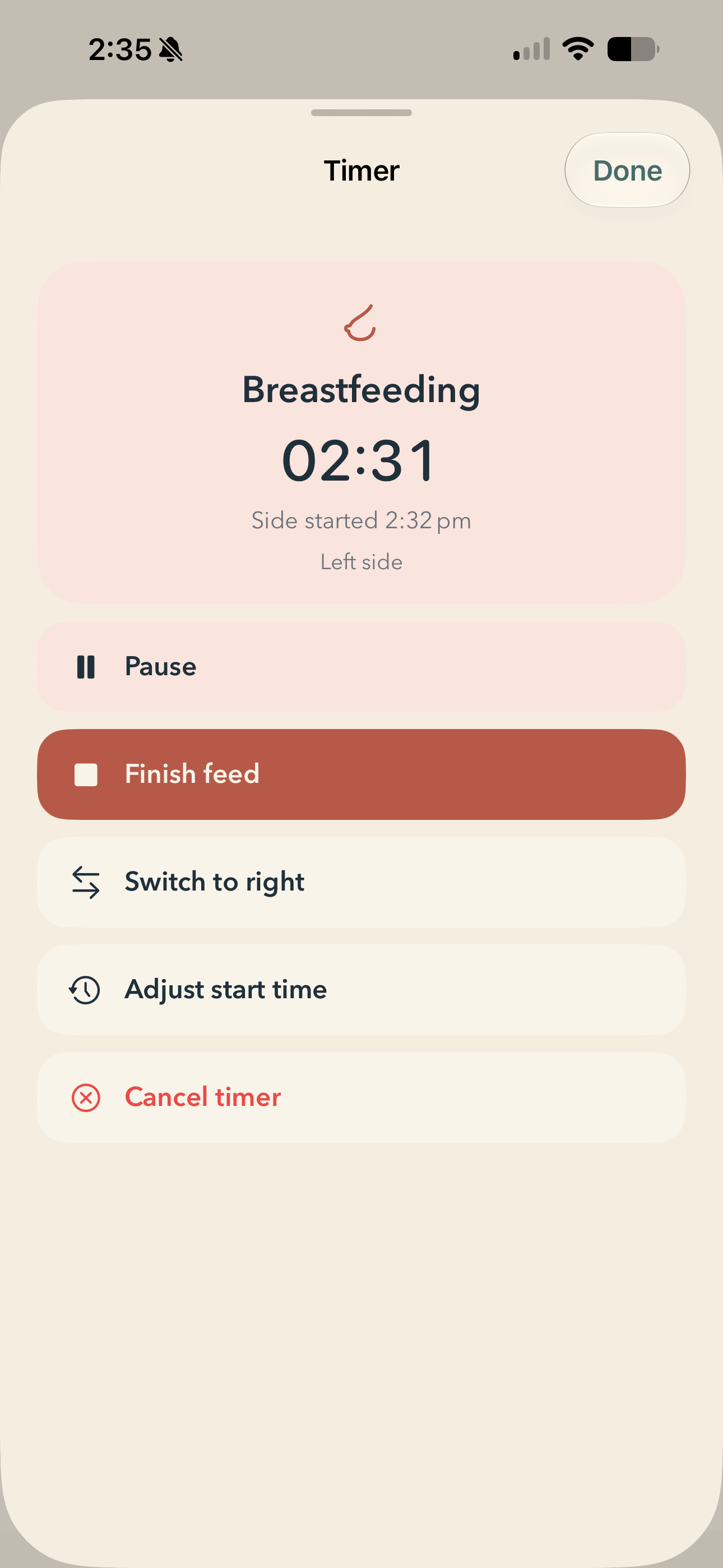
Tap a running sleep, breastfeeding or pumping timer to open its controls. You can pause or resume, finish, adjust the start time or cancel. Breastfeeding and pumping also offer side controls. Paused time is excluded from totals.
The breastfeeding shortcut suggests the opposite side from the last recorded feed. After a pumping session, you can record the amount expressed; choose how to record it in Settings → Pumping volume.
To choose whether the timer card opens automatically, use Settings → Prompts → Open card when a timer starts.
Can I use timers on the Lock Screen?
Open Settings → Live Activities to enable sleep, breastfeeding and pumping timers on supported devices. Pause, resume or stop from the Lock Screen or expanded Dynamic Island, and switch feeding or pumping sides. You can also choose whether the Lock Screen shows your child’s name or photo.
The sleep time range excludes Live Activities for sleeps that start during those hours. It does not stop recording sleep. iOS controls availability and duration; the in-app timer continues if a Live Activity is dismissed or expires. Updates from a partner appear when your device receives an iCloud update.
How do I use Little Days at night?
Open Settings → Ultra night mode for dim night-time logging. The optional red screen light fades in and out; tap its red dot to turn it off.
Handedness, gesture sensitivity and haptics are under Settings → Hand, gestures & haptics. Logging confirmation notifications are off by default on a newly set-up device.
Where are my history, daily totals and milestones?
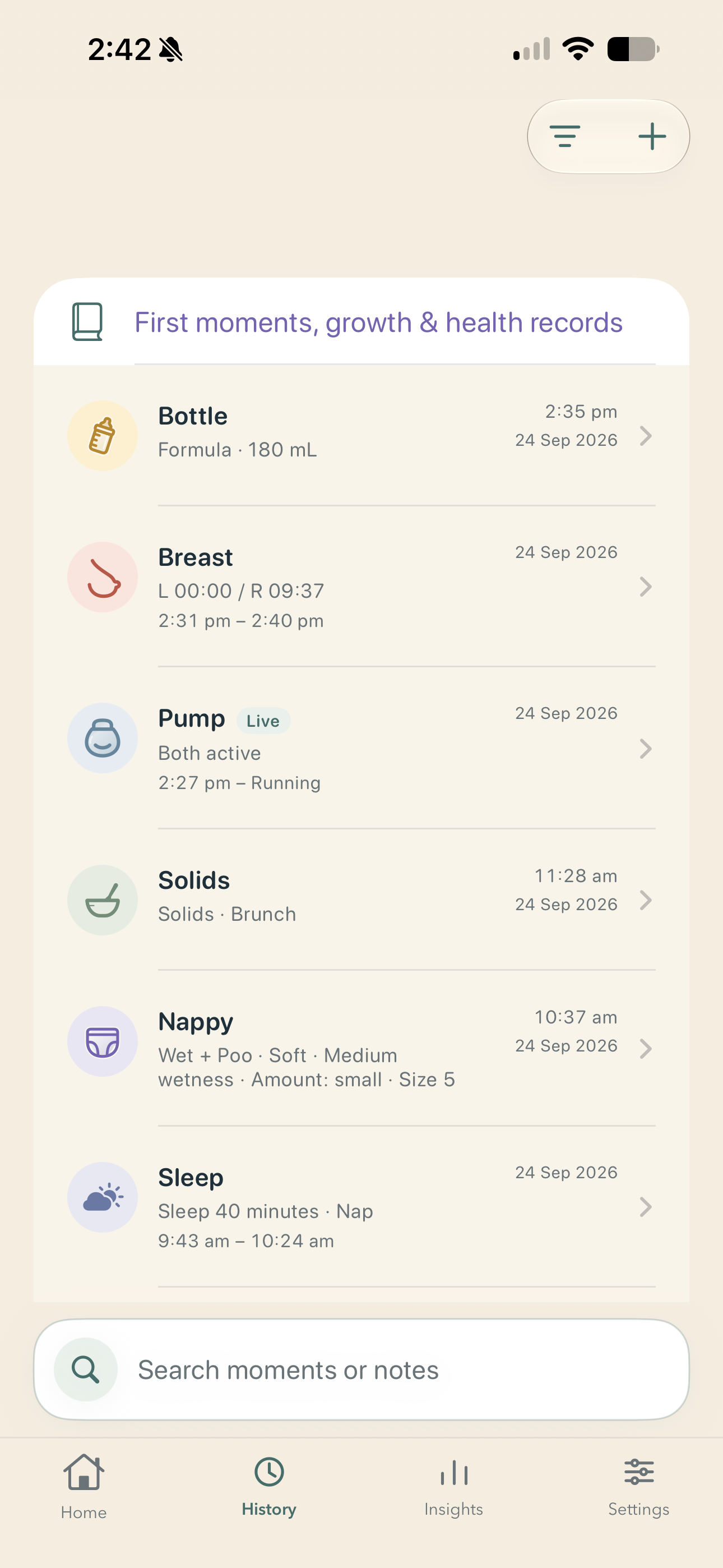
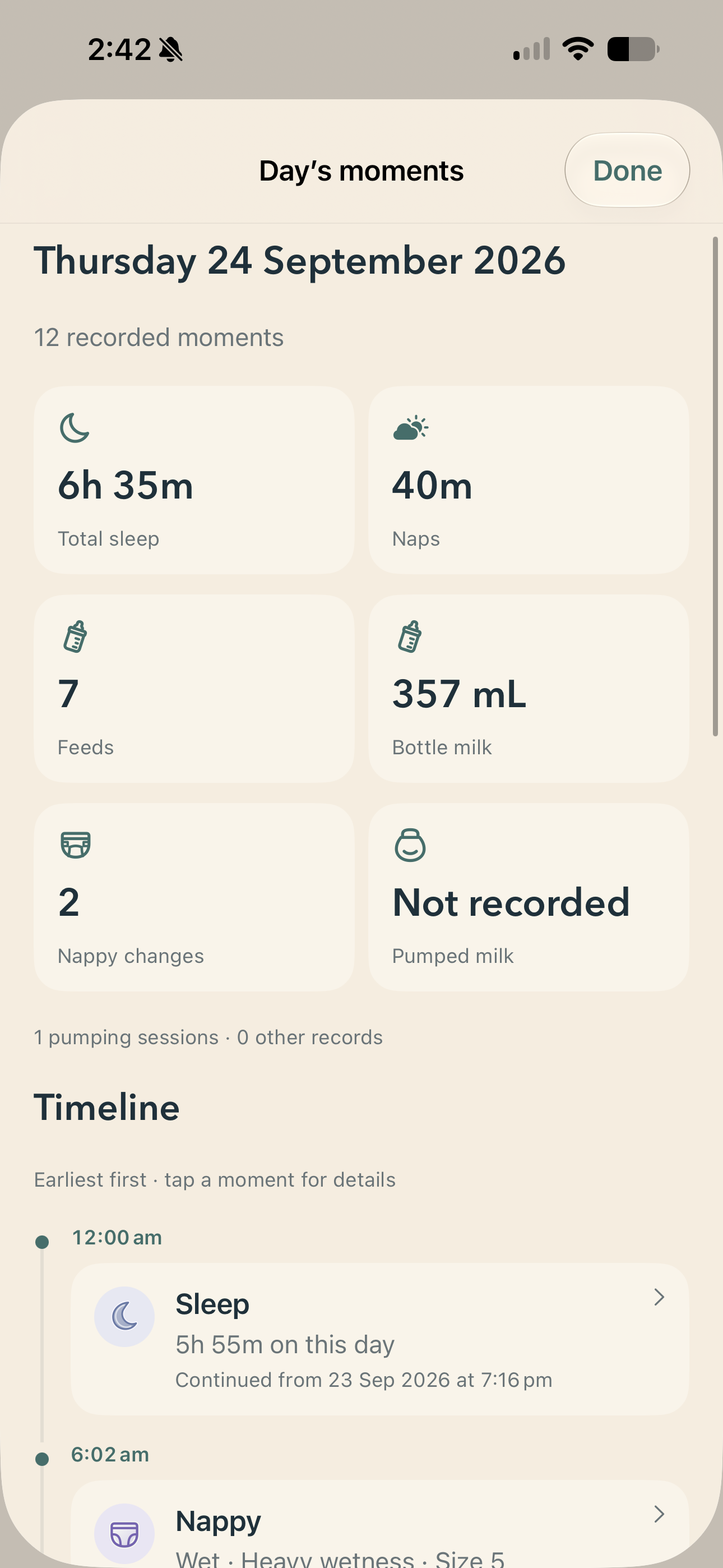
Use History to search moments, open their details, edit them or add a manual entry. Insights includes a calendar, summaries and other views of recorded activity. Tap a day to see its totals and timeline.
Other lets you record first moments, growth measurements and health notes. These are personal records, not diagnoses, medication advice or verified vaccine schedules.
Add or edit children under Settings → Baby profiles. Use the child chooser on Home or swipe between children to change whose day you see.
Does it work offline, and how do I share care?
Yes, records save on your device offline. You don’t need a Little Days account. Optional iCloud sync uses your Apple Account and sends offline changes when iCloud is available again.
- Open Settings → iCloud & partner sharing and turn on iCloud sync.
- Choose the profile and tap Invite or manage sharing.
- Choose access in Apple’s sharing sheet. Your partner installs Little Days, signs into their own Apple Account and opens the invitation.
Manage participants in Apple’s sharing sheet. Both devices need iCloud available for changes to sync.
How do backups, imports and a new phone work?
Open Settings → Backups → Export backup and choose where to save the JSON file. To restore it, use Restore from backup. Restore adds missing records and keeps existing records unchanged; it does not modify shared profiles. Backup files can contain personal and health information, so keep them somewhere private.
For a supported Nara Baby CSV export, use Settings → Import from Nara Baby and review the import before saving. Little Days is not affiliated with Nara Baby.
On a new device, sign into the same Apple Account and enable iCloud for Little Days. Allow previously synced profiles to download before creating another profile. You can also restore a separate backup file.
iCloud sync includes deletions; it is not a historical backup. Deleting a profile deletes its history and syncs that deletion to other devices and participants. Turning sync off does not erase existing copies. Keep an exported backup if you want a separate snapshot.
Support & feedback.
Tell us what happened, your device model and the app version. Please avoid including your child’s personal records unless they’re needed to explain the issue.
Email about Little DaysAppsByNoBigDyl@gmail.com
Little Days is a record-keeping tool for parents and caregivers, not medical advice.